
How to Show Percent Complete on a Gantt Chart
Enter progress on each task so a status view shows reported completion alongside planned dates.
Show reported completion beside the dates
Dates tell you when something is scheduled. They do not tell you whether it is nearly done or has not started. Setting progress on each task fills the bar to match, so one glance separates finished work from work still in flight.
Set a task's progress
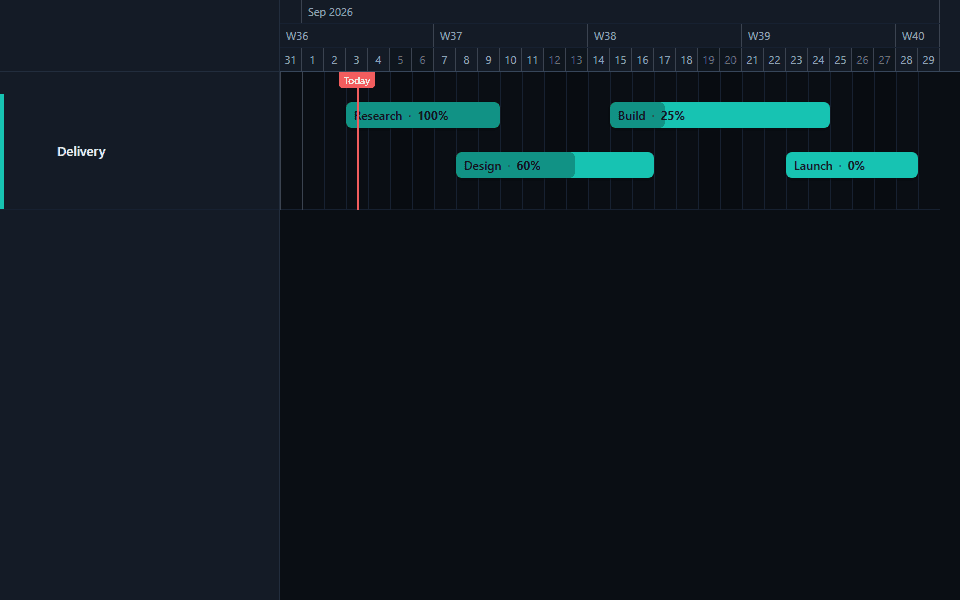
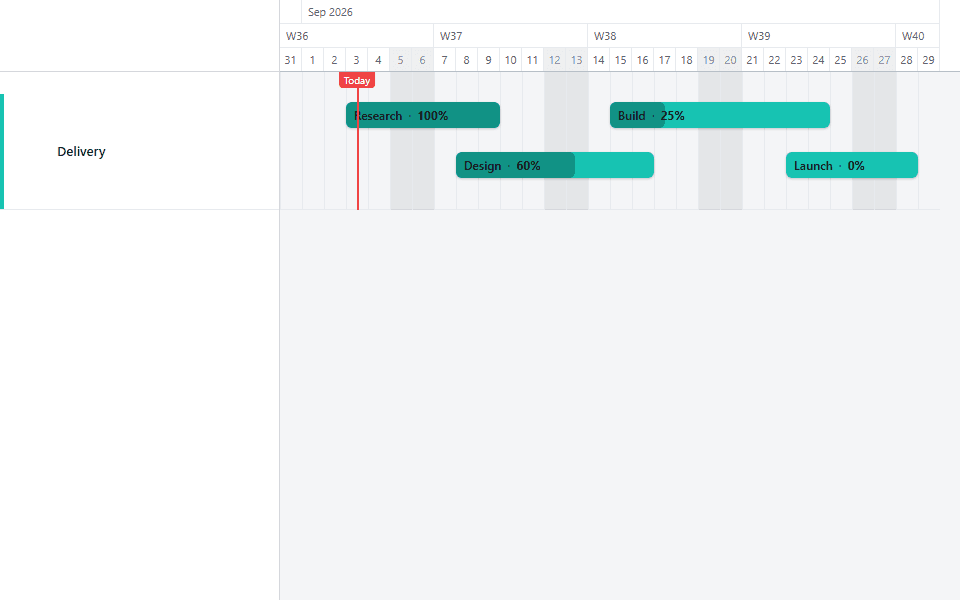
Select a task and set its progress anywhere from 0 to 100. The bar fills proportionally as soon as you do. The fill renders whenever progress is set, whether or not you show the number.
Turn on the progress label
The fill alone shows the rough shape. Turning on the progress label prints the exact percentage as text, and you can place it in any of the usual label positions around the bar.
Use one reporting rule
Choose what a percentage means before updating the chart. Use completed deliverables, accepted work, or another rule the team can repeat. Update every active task on the same reporting date.
Why progress needs a reporting rule, not just a number
The single biggest reason percent-complete tracking loses credibility on a real project is inconsistency: one contributor reports effort spent, another reports time elapsed, and a third reports gut feel. All three produce a number between 0 and 100, and none of them mean the same thing.
Pick one rule before the first status update and hold everyone to it. Three common options, in order of how defensible they are in a client-facing report:
Completed and accepted deliverables. The strongest option. A task is 40% complete because 4 of 10 agreed deliverables have been formally accepted, not because someone feels four-tenths finished. This survives scrutiny because it points to something concrete.
Milestones within the task reached. Workable when a task genuinely has internal checkpoints: a document that goes through draft, review, and final, for example, might report 33/66/100 at each stage. Weaker than deliverable acceptance, but still anchored to something observable.
Effort spent as a fraction of estimate. The weakest of the three, and worth naming as a trap: this measures how much time or budget has been consumed, not how much of the actual work is done. A task can burn 90% of its estimated hours while being nowhere near 90% finished. Avoid this rule if the number is going anywhere near a client or sponsor.
Whichever rule you choose, write it down somewhere the team can see it, and apply it the same way every reporting cycle.
Example: report accepted work, not elapsed time
A ten-day task is on day eight, but only 4 of 10 deliverables have been accepted. Enter 40%, not 80%. The calendar says how much time has passed; the progress field should say how much agreed work is complete.
Use 0% for work that has not started and 100% only when the completion rule has been met. Avoid values such as 73% unless the underlying measure supports that precision.
Progress alone does not tell the whole story
Percent complete answers "how much of the work is done." It does not answer "are we still on schedule," and treating the two as the same question is a common and avoidable mistake.
A task can be 90% complete and badly behind schedule, if the original estimate was too generous and the remaining 10% turns out to be the hard part. A task can also be 20% complete and perfectly on schedule, if it only started yesterday and nobody expected more yet.
The complementary tool is a baseline, which records a task's dates at an agreed point and compares them against its current planned dates. Progress and baseline variance are answering different questions, and a status view that shows only one of them is missing half the picture. A task reading "60% complete, +9 days variance" is a very different situation from "60% complete, on time"; the number alone does not distinguish them.
What GanttFlow does not calculate
No automatic rollup. A lane or a parent task does not show a computed average of its children's progress. Each task's value is independent. If you need a lane-level view, set progress on every task inside it and read them together, or maintain a summary task you update by hand.
No progress-versus-time comparison built in. GanttFlow will not flag a task as "behind" because its progress is lower than its elapsed time would suggest. That judgment is yours to make by comparing the fill against the bar's position on the calendar.
No history of how progress changed over time. The chart shows the current value only. If you need to show a trend (20% last week, 45% this week), keep your own record between exports, the same discipline recommended for baseline variance.
Common mistakes
Mixing reporting rules across the team. The fastest way to make a progress column meaningless. Agree on one rule and put it in writing before the first status update, not after the first disagreement about what a number means.
Using round numbers that don't reflect anything real. A task jumping from 20% to 50% to 100% with nothing in between usually means someone is estimating rather than measuring. If your rule is genuinely deliverable-based, the numbers should move in whatever increments those deliverables actually come in; three deliverables should not force round fractions.
Forgetting to update in-flight tasks before exporting. A status view is only useful if every active task reflects its actual current state on the reporting date. A single stale task in an otherwise current chart undermines confidence in the whole export.
Treating 100% as "no further changes expected." Progress and scope are different things. A task marked 100% complete based on the current agreed scope can still need more work if scope changes later; that is a scope conversation, not a reason to leave the task showing less than 100% while waiting.
Using it in a status update
The rhythm that works well: update every in-flight task's progress against your chosen rule, check baseline variance if you are using one, and export the chart on a fixed cadence so stakeholders know when to expect the next view. Keep the reporting rule visible in whatever document accompanies the export, especially the first few times you share it with a new audience; a number without its rule invites the reader to assume their own.
See reported progress on a real plan in the Product Delivery template, which ships with a mix of in-progress and completed tasks so the fill pattern is visible at a glance.
Common questions
- Does GanttFlow calculate progress from the current date automatically?
- No. Progress is a value you set on each task, from 0 to 100. GanttFlow never infers it from how much of the scheduled duration has elapsed, from dependency state, or from child tasks. A task can sit at 0% the day before its deadline, or at 100% in its first hour, if that is what actually happened. The chart shows what you report, nothing else.
- What is the difference between percent complete and a baseline?
- They measure two different things. Percent complete is a manual estimate of how much of the work is actually done. A baseline compares a task's current planned dates against dates saved earlier, showing schedule drift rather than work completed. A task can be on schedule and 0% complete, or badly behind schedule and 90% complete. Use progress to answer "how much work is done" and a baseline to answer "are we still on the dates we agreed."
- Should subtasks or child lanes roll up progress automatically?
- GanttFlow does not calculate a rolled-up percentage for a lane or a parent task from its children. Each task's progress value is set independently. If you want a lane-level view of completion, set progress on every task inside it and read them together, or add a summary task and update its progress by hand based on your own judgment of the group's status.
- Why does the progress fill look wrong compared to how much time has passed?
- That's expected if you are using a completed-deliverables rule rather than an elapsed-time rule. A ten-day task on day eight is 80% through its calendar time, but if only 4 of 10 deliverables are accepted, its progress should read 40%. The fill will look "behind" the calendar because it is measuring something different on purpose. Pick a reporting rule and keep it consistent, so the fill always means the same thing.
- Can I show progress and a baseline on the same chart at once?
- Yes. Progress fill and baseline bars are independent settings and render together without conflict. This is a common combination for a status view: the baseline shows whether the schedule moved, and the progress fill shows how much work is actually done against the current dates. See tracking schedule slip with a baseline for the other half of that picture.